Exercise 1 Demo: Part B : Using Block Elements
Block Elements start a new line, with a space above and below them. They control whole sections, or blocks of your page. These elements include the Heading elements from H1 - H6 and the P tag or paragraph element.
Here is an example of how you could use the block elements
<!DOCTYPE html>
My First Web Page
<html>
<head>
<title> </title>
</head>
<body>
Welcome to my page
That is a heading starting with the <h1> opening tag and ending with the </h1> closing tag.
<h2> This is using the h2 Tag </h2>
<h3> Be sure to try the other Heading tags from h3 - h6 </h3>
<p>
What if you want to make paragraphs in your text? Use the <p> </p> tag. The <p> tag and the h tags are Block Elements. They automatically have space (margin and padding) around themselves. The space is the same as two hits on the return/enter key on the keyboard.
</p>


<p>
Most Elements in HTML require a closing tag. To be compliant we will use a </p> tag.
</p>
Time to put in some content that you want to display in your first web page. Type in several sentences.
<p>
Insert another <p> tag between your sentences. Be sure to add a closing </p> tag at the end of each paragraph.
</p>
Attributes
Have you noticed that the text you have added automatically aligns to the left? This is the default position. What if you want your text to go to the right? Add an Attribute. Attributes modify elements by giving more information.
Attributes are only contained in the opening tag, never in the closing tag. They come after the element, in the tag. You can use more than one attribute in an element. Be sure to separate them with a space.
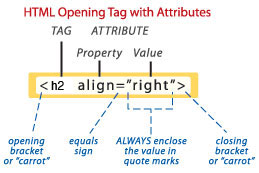
<p align="right">
We just need to tell the <p> tag where to align by using the align="right" attribute. Your code will still be aligned to the left but your text will be aligned to the right on your web page. </p>
<p>
An HTML tag attribute includes a property and a value.
</p>
The <p align="center"> attribute value works the same way.
Make sure you use the = and the " " marks.
All attribute values must be inside quote marks.
</p>
When you use the closing </p> tag it does NOT need the attribute. Attributes are only used in the opening tags. The closing tag just tells the browser STOP.
<h3 align="right"> You can make a heading align to the right just as easily.</h3>
<h4 align="center"> Try a centered heading. </h4>
<h5> As the heading numbers get bigger the size gets smaller. </h5>
<h6>Now we are really getting tiny. </h6>
</body>
</html>
Give the browser some more instructions.
Go to Part C of Demo 1.