Transferring Files to the School Server using FUGU (MAC)
To transfer files from your computer to your
Web folder on MiraCosta College's Web server follow the steps
outlined below:
This section documents Fugu, a free SFTP program for OS X produced by the Research Systems Unix Group at The University
of Michigan. It can be downloaded at this location:
http://rsug.itd.umich.edu/software/fugu
How to Connect with Fugu
- Open the Fugu Program by double-clicking on the application.
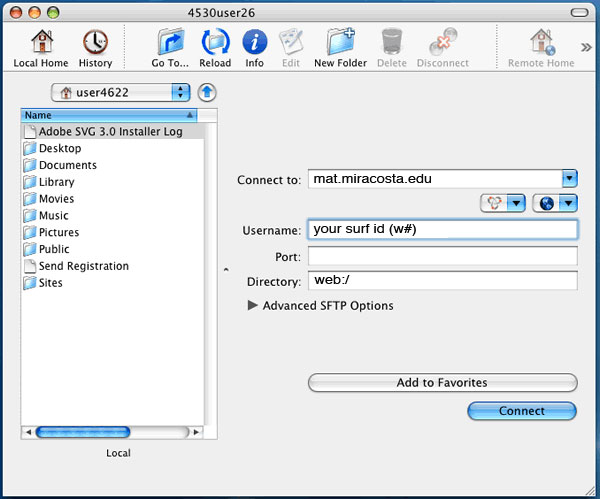
- The initial window has a pane on the left displaying the files on your local hard drive. The first time you start the program it will probably list your user folder, but in the Application Menu/Preferences you can specify what the default folder on your hard drive will be.
- The right side of the window allows you to enter in the information for the host you want to connect to.
- Fill in the connection information and click the Connect button to initiate the connection.
- Connect to - mat.miracosta.edu
- User name: YourUserName (your surf ID)
- Directory - web:/
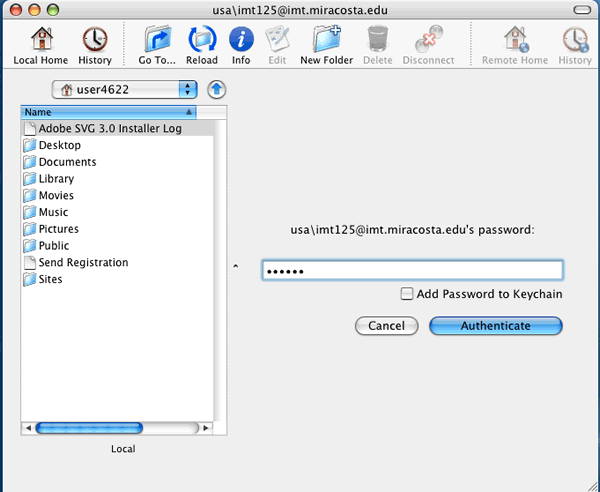
- Click Connect. The program will now ask you to input your password. Enter that here.
- Click the Authenticate button to proceed.
Find your Files and select your destination folder
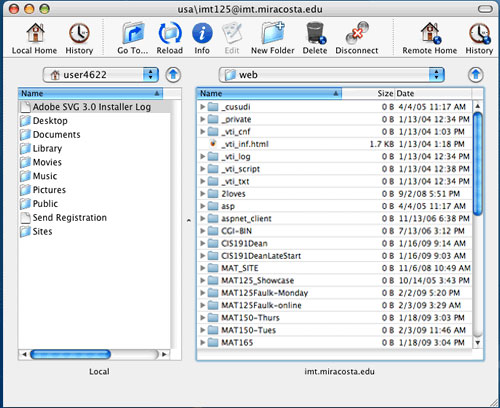
The left window is your local machine. The right window is the
web server. Navigate your local directories (left side) to find
the files you want to transfer. Select the destination folder
(the right side) where you want to put your files.
Transferring Files
Drag and Drop - Fugu supports drag and drop. Simply pick up a
file and drag it to the other window. You can also pick up a file
from anywhere on your hard drive and drag it to a window. Or drag
it from a window to anywhere on your computer. Our folder is MAT125Faulk for the online classes.
Deleting Files and Folders
To delete a file, select the file and click the Delete button in
the toolbar. A confirmation dialog will be displayed.
Fugu cannot delete a folder of files IF that folder contains any
files. A nuisance, but easy to resolve.
- Pull down the SFTP/Show Hidden Files menu command to ensure that ALL files will be displayed.
- Double-click the folder you want to delete so its files are displayed.
- Select all of the files with CommandKey - A.
- Click the Delete button in the toolbar to delete the files.
- Go up one level, select the folder, and then click the Delete button in the toolbar to delete the now empty folder.